


A slow computer does not always need new parts or a repair shop visit. A set of do-it-yourself fixes can restore lost speed on a Windows PC or laptop, according to a report published by 247 News Agency.

Several factors can make a computer slow down or freeze over time, even an expensive, well-equipped one. These include outdated drivers or software, insufficient RAM, graphics card or processor power, disk fragmentation on machines with a hard drive, viruses or other malware, incorrect settings, too many background programs running, and low free space on the system disk. Each of these problems can be fixed without replacing the hard drive or other components.
Restart the computer and install updates
The fastest and often most effective fix is simply restarting the device, which is where anyone should start if their PC has gotten slower. This works only for minor issues, such as excess cache and temporary files clogging up RAM, small accumulated software errors, or applications conflicting over shared use of memory or the processor.
If the computer offers a system or driver update, it should be installed, since new software versions fix bugs, improve performance and add features. Windows Update, built into the operating system, checks for new updates and can be set to download and install them automatically. It delivers security updates that close vulnerabilities exploited by malware, updates to operating system components that add new features, and driver updates that improve device performance, for instance on a graphics card. Some system updates can still be unfinished, however, and may end up slowing the device down further rather than speeding it up.

Manage startup programs
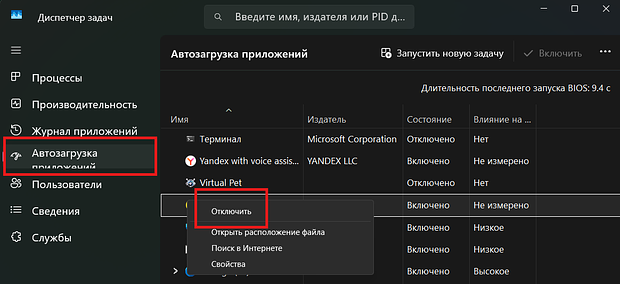
Performance problems can stem from programs that launch automatically when the PC boots, since they use up processing power and take up space in RAM. On Windows 10 or 11, users can open Task Manager with Ctrl + Alt + Del, select the Startup tab, review the list of programs that launch automatically, choose the unnecessary one and click Disable so it no longer starts automatically when the computer turns on.
On Windows 7, the process is different: press Win + R, type msconfig and press Enter, open the Startup tab, uncheck the box next to the program to disable, then click OK.
Turn off visual effects
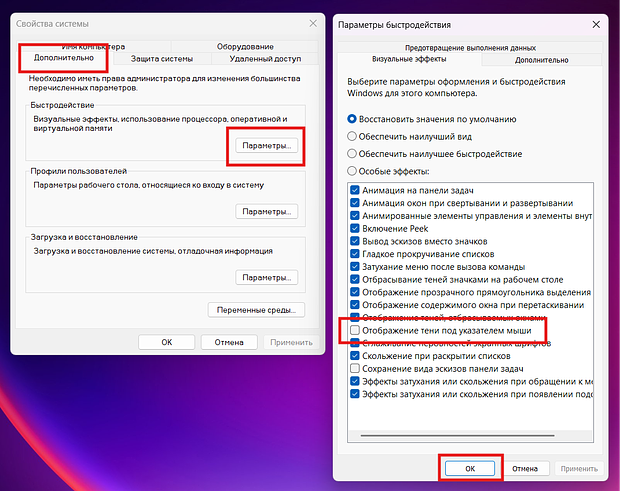
Visual effects are graphical touches such as shadows, smooth transitions and transparency that make the interface look more modern. This fix tends to help only on older or weaker laptops and PCs, since modern devices handle Windows' graphical effects easily. To turn them off, press Win + R, type sysdm.cpl and press Enter, select Advanced at the top of the window that appears, open the Performance section, choose Settings, then disable the unwanted effects and click OK.
Clean up the disk and scan for viruses
Running Disk Cleanup removes temporary files, old system updates and browser cache, and can also uninstall unused programs, freeing up space and boosting performance across the whole PC. To use the built-in tool, click Start, choose Settings, open System, click Storage, then select Cleanup recommendations and follow the on-screen instructions.
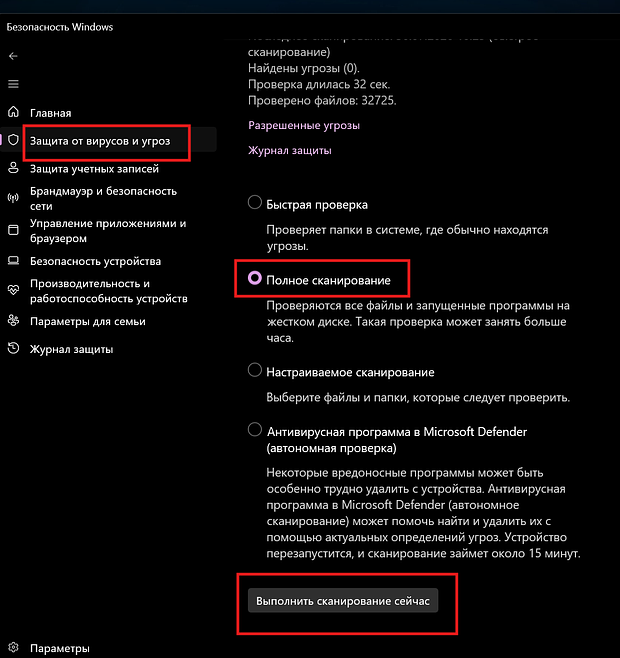
Malware consumes system resources, which slows down how quickly the computer processes commands. Running an antivirus program, whether the built-in Windows Defender or a downloaded one such as Kaspersky, can check for it. In Windows Defender, click Start, choose Settings, open Privacy and Security, then Windows Security, select Open Windows Security Service, go to Virus and Threat Protection, click Scan Options under Current Threats, choose Full Scan and click Scan Now, then wait for the process to finish and follow the instructions to remove any viruses found.
Change the power plan and enable game mode
Several power management schemes affect how much energy a PC draws, and this has a direct effect on performance, since higher power consumption generally means higher performance. To adjust it, click Start, open Control Panel, choose All Control Panel Items, then Power Options, select High Performance, open Change Plan Settings, click Change Advanced Power Settings, set Turn Off Hard Disk After to 0, open Processor Power Management, select Maximum Processor State and set it to 100 percent, then click OK.

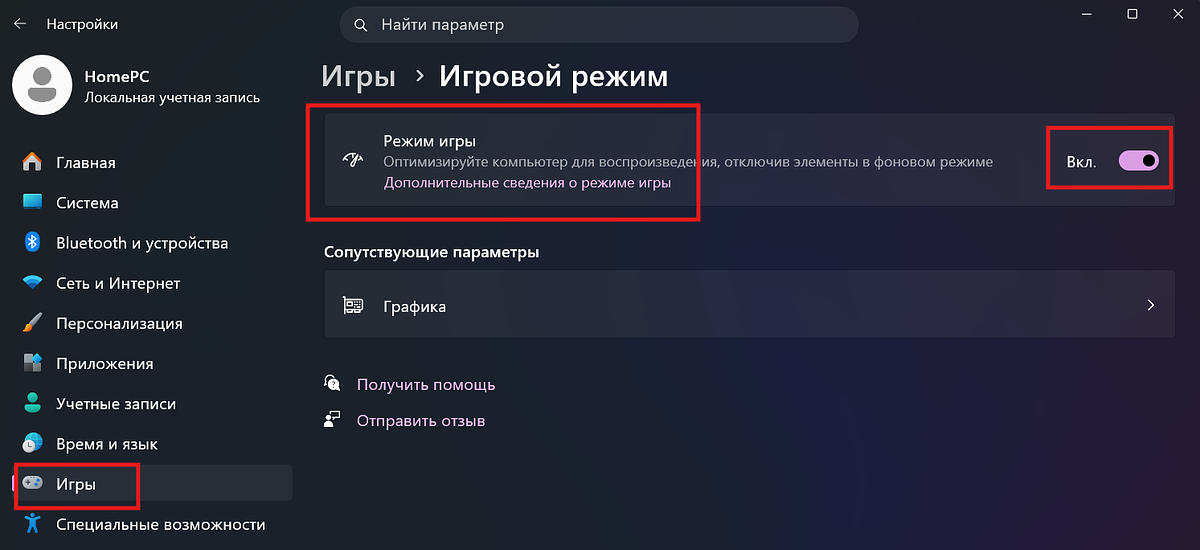
For gaming performance specifically, users can turn on game mode, which prioritizes a running game for the system. To enable it, press Win + I, open Gaming, select Game Mode, then click the toggle next to it to turn it on.
Fix system errors and move files to an SSD
Windows includes built-in tools to find and fix system problems, some of which can slow down the whole device if left unresolved. To run the troubleshooter, click Start, open Settings, select Update and Security, click Troubleshoot, then click Run the Troubleshooter and follow the on-screen instructions.
A solid-state drive, or SSD, stores data using flash memory chips rather than the moving mechanical parts found in a traditional hard disk drive, or HDD, which lets it access files much faster. Anyone with both an HDD and an SSD installed should put the operating system on the SSD. If that is not possible, moving just the paging file, which lets Windows use virtual memory when RAM runs short, onto the SSD still helps.
To move the paging file, open Control Panel and select System, go to Advanced System Settings, select Advanced at the top of the window, open Performance, then Settings, open Advanced again and select Virtual Memory. Click Change, uncheck Automatically Manage Paging File Size for All Drives, select the drive to move the file from in the list, click No Paging File, then Set and Yes. Select the destination drive, click System Managed Size and Set, click OK and restart the computer.

Disable extensions and adjust privacy settings
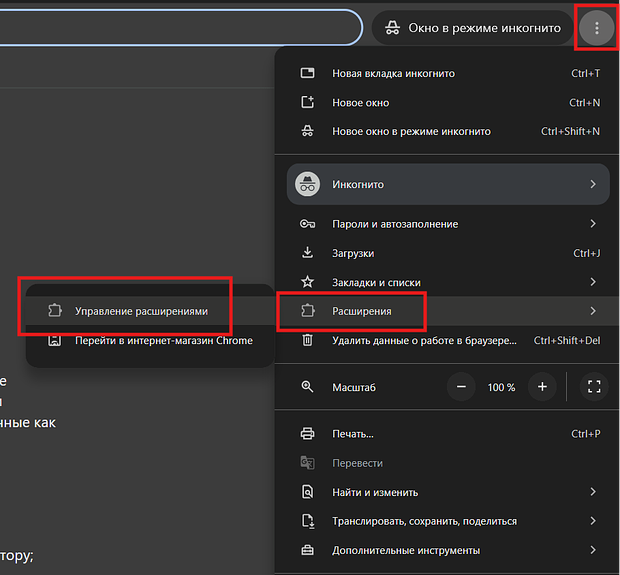
If a PC slows down specifically while loading websites, the cause may be browser extensions rather than the system itself. In Google Chrome, click the three dots in the top right corner to open the menu, select Extensions, click Manage Extensions, then toggle off any unneeded ones or click Remove for extensions that will not be used again soon.
By default, computers track various user actions and send collected reports to Microsoft, and this background activity consumes system resources, affecting weaker PCs especially heavily. To adjust these settings, open Start, select Settings, go to Privacy, open General or Recommendations and Tips, and turn off the toggles that let Windows use personalized advertising, access the language list and track app launches. Then open Feedback and Diagnostics and select Never for how often feedback is requested and for the amount of data sent.
Other ways to speed up a PC
Adding one or more extra memory modules increases RAM. A gaming PC benefits from having 32 gigabytes, while 16 gigabytes is enough for a basic home computer, though many laptops and desktops come with much less, 8 or even 4 gigabytes. Before buying modules, users should confirm their device has free memory slots and check what type of memory is already installed.
Installing an SSD helps anyone whose computer currently runs only on an HDD. Cleaning dust out of a laptop or desktop tower with a can of compressed air also helps, and manufacturers recommend doing this every three to six months.


