

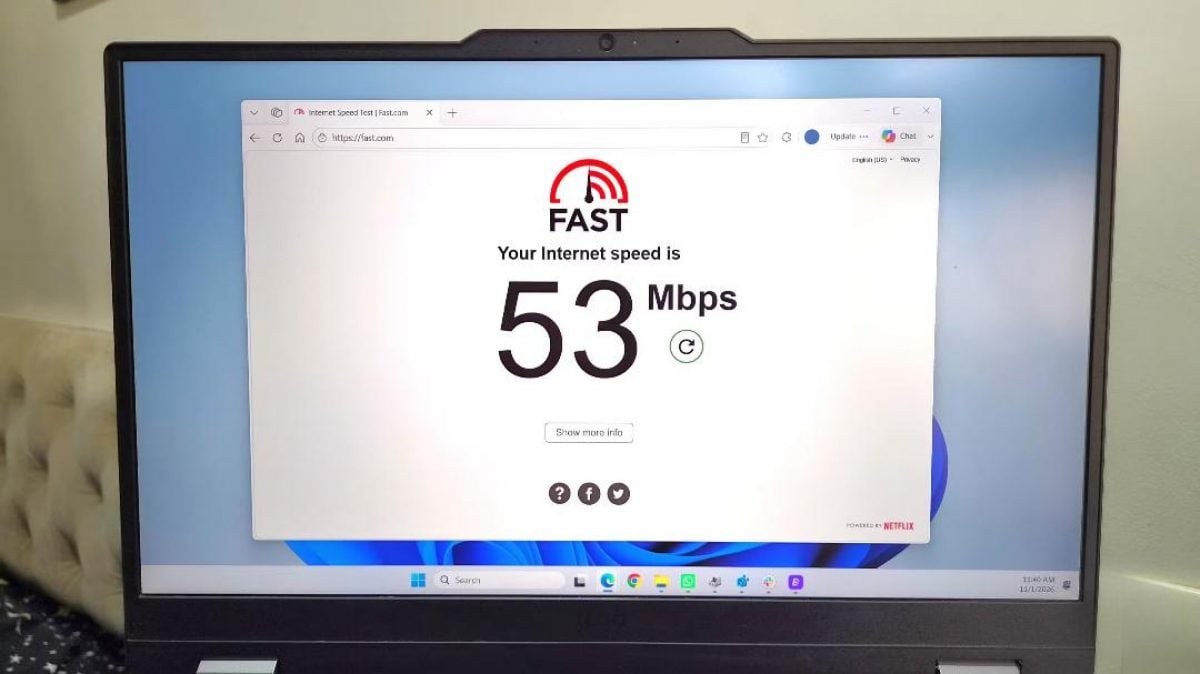
A power-saving setting that Microsoft turns on by default in Windows is quietly capping Wi-Fi speeds for laptop users, according to the technology publication MakeUseOf.
The outlet found that Windows' standard "Balanced" power plan throttles the wireless adapter to save battery, but the trade-off barely extends battery life while noticeably slowing download speeds and increasing ping.

MakeUseOf specialists said two separate settings are responsible for the slowdown, one in the Windows power plan menu and one hidden inside Device Manager, and both can be switched off manually.
Switching off wireless power saving
Windows ships with the Balanced power scheme active by default. When a laptop runs on battery, the operating system automatically shifts the Wi-Fi adapter into a medium power-saving mode, according to MakeUseOf.
The outlet said this setting does little to stretch battery life but noticeably cuts the bandwidth available to the adapter.
To switch the adapter to maximum performance, MakeUseOf recommends typing "Edit power plan" into the Windows Start menu search box, opening the top result, and then clicking "Change advanced power settings."
From there, users should expand "Wireless Adapter Settings" and then "Power Saving Mode," and set both the "On battery" and "Plugged in" options to "Maximum Performance" before clicking "Apply" and "OK."
MakeUseOf noted that this menu is hidden in some versions of Windows. To restore it, the publication said users can open the Registry Editor by pressing Win+R and typing "regedit," then navigate to the key HKEY_LOCAL_MACHINESYSTEMCurrentControlSetControlPowerPowerSettings19cbb8fa-5279-450e-9fac-8a3d5fedd0c112bbebe6-58d6-4636-95bb-3217ef867c1a.
Inside that key, right-clicking and selecting "New," then "DWORD (32-bit) Value," naming it "Attributes" and setting its value to 2 will bring the hidden menu back, according to the outlet. MakeUseOf advised creating a system restore point before editing the registry.

Stopping Device Manager from disabling the adapter
A second limit on wireless speed is built into the hardware settings for the adapter itself inside Device Manager, MakeUseOf said. A power management feature lets Windows reduce the radio module's activity when demand is low, but the outlet found it often triggers incorrectly and slows the connection even during active use.
To turn it off, MakeUseOf's instructions call for right-clicking the Start button, opening Device Manager, expanding "Network adapters," right-clicking the Wi-Fi adapter and selecting "Properties."
Under the "Power Management" tab, users should untick the box labelled "Allow the computer to turn off this device to save power" and click "OK" to save the change.
Speeds more than doubled in testing
MakeUseOf said turning off both restrictions allowed its author to more than double the average speed of a wireless connection in testing, with no noticeable drop in the laptop's battery life.
The report was published alongside separate MakeUseOf-sourced advice on where in a home not to place a Wi-Fi router, and UNIAN's own guidance on extending support for Windows 10 by a year through Microsoft's Extended Security Updates programme, which continues to issue critical fixes to enrolled users.
Test yourself
According to MakeUseOf, what Windows power plan throttles the Wi-Fi adapter by default?
What DWORD value should be set for the 'Attributes' registry entry to restore the hidden wireless power menu?
What result did MakeUseOf report after disabling both Wi-Fi power restrictions?
Have your say
Have you checked your Windows power settings to see if they're slowing your Wi-Fi?