

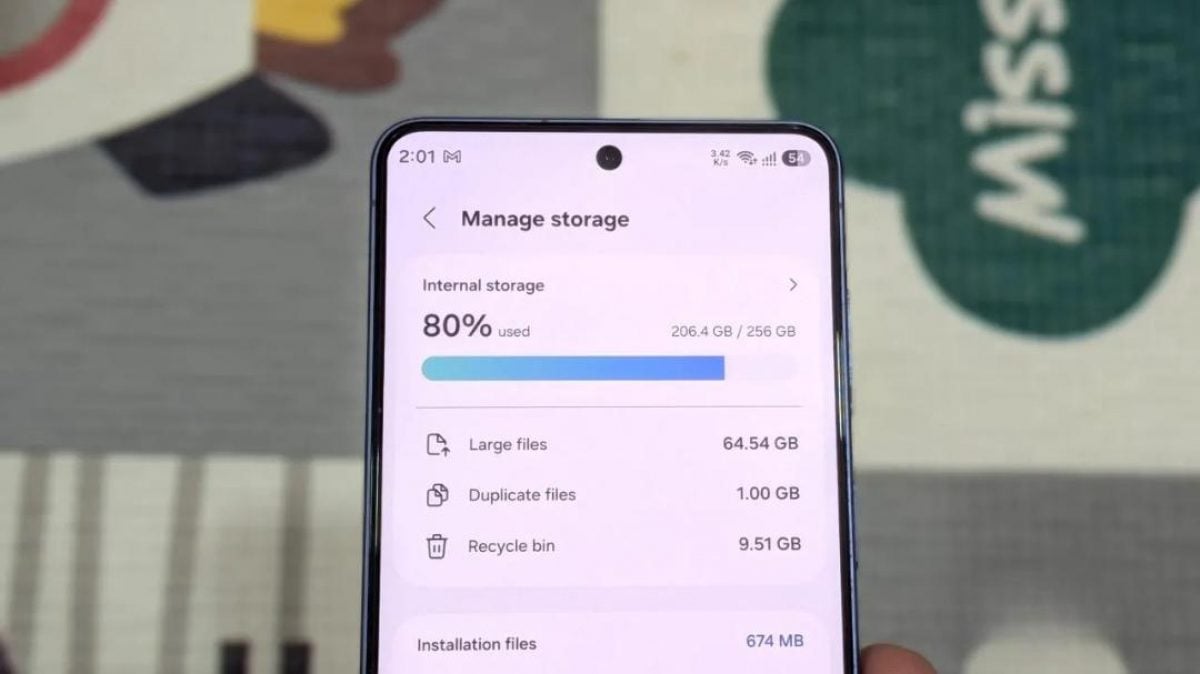
A technology reviewer at Android Authority freed up 36 gigabytes of storage on a Samsung Galaxy S26 without deleting a single photograph from the gallery, using a set of five methods that worked around the phone's lack of a microSD card slot.
Running out of storage is a common problem for owners of modern smartphones that cannot take a memory card, and the reviewer set out to show that the issue can be solved without touching the photo library. The outlet said the five steps added up to 36 gigabytes of freed space in total.

Deleting and Archiving Unused Apps
The first step was checking through already installed apps and games. Deleting neglected games, test browsers and video editors freed almost 4 gigabytes on its own.
For apps that are rarely needed but not worth deleting outright, the reviewer used Android's built-in archiving feature, found by going to Settings, then Apps, then selecting the app in question and choosing Archive. The system removes the app's core files, shrinking its size by 60 to 90 percent, while keeping personal data and settings intact. Tapping the icon again automatically re-downloads the app without having to log back into any account. Automatic archiving can also be switched on inside Google Play, under Settings, General, and then Automatically archive apps.
Clearing Cache From Data-Heavy Apps

Messaging apps, social networks and streaming services such as Chrome, Instagram, Spotify, WhatsApp, YouTube and Maps build up gigabytes of temporary files over time. Because Android no longer has a single button to clear all cache at once, the reviewer had to do it manually, opening Settings, then Apps, and sorting the list by storage used.
Going into the Storage section for the ten heaviest apps and tapping Clear Cache is safe for personal data, the reviewer said, and it freed another 6 gigabytes.
Cleaning Up With Files by Google

Google's built-in file manager app, Files by Google, is well suited to tracking down digital clutter. In its Clean tab, the app's algorithm automatically finds old installation APK files, unneeded screenshots, duplicate files and large ZIP archives.
One catch: files deleted this way go into a trash folder and stay there for 30 days. To free up the space immediately, the reviewer said users need to open the trash tab and empty it manually. This step freed about 4 gigabytes.
Removing Offline Downloads

Films, shows, music playlists and podcasts downloaded ahead of a trip through Netflix, YouTube, Spotify or Prime Video often sit forgotten on a phone long after they are needed.
Checking the "Downloaded" sections of these apps brought the reviewer 8 gigabytes. The reviewer also suggested checking offline maps in Google Maps, since saved regions and large cities can take up several gigabytes on their own.
Moving Large Files to an External Drive
Even without a microSD slot, modern Android devices can connect directly to USB flash drives, portable SSDs or card readers through their USB-C port.
Moving large 4K video files and old archives onto an external SSD using the phone's standard file manager freed another 12 gigabytes, with all the files kept intact and no need to pay for cloud storage.
Taken together, the reviewer said, this combined approach freed 36 gigabytes of storage in a single evening without any drastic measures. To stop the storage filling up again, the reviewer recommended turning on automatic app archiving and checking messenger cache and offline downloads every few months.
What happens next
The reviewer recommended turning on automatic app archiving and checking messenger cache and offline downloads every few months to stop storage filling up again.
Test yourself
How much storage did the Android Authority reviewer free in total?
Which app did the reviewer use to find old APK files, duplicates and ZIP archives?
Which step freed the most storage, 12 gigabytes?
Have your say
Which method would you try first to free up phone storage?