


Apple Mac users can customize the icon of any installed application natively in macOS in less than one minute without installing third-party software, tech writer Edgar Otero reported on October 7, 2026.
The native method relies on built-in operating system tools to copy and paste image files directly into an application properties window. Otero explained that the technique works for nearly all software installed on Mac computers, including web applications created through internet browsers.
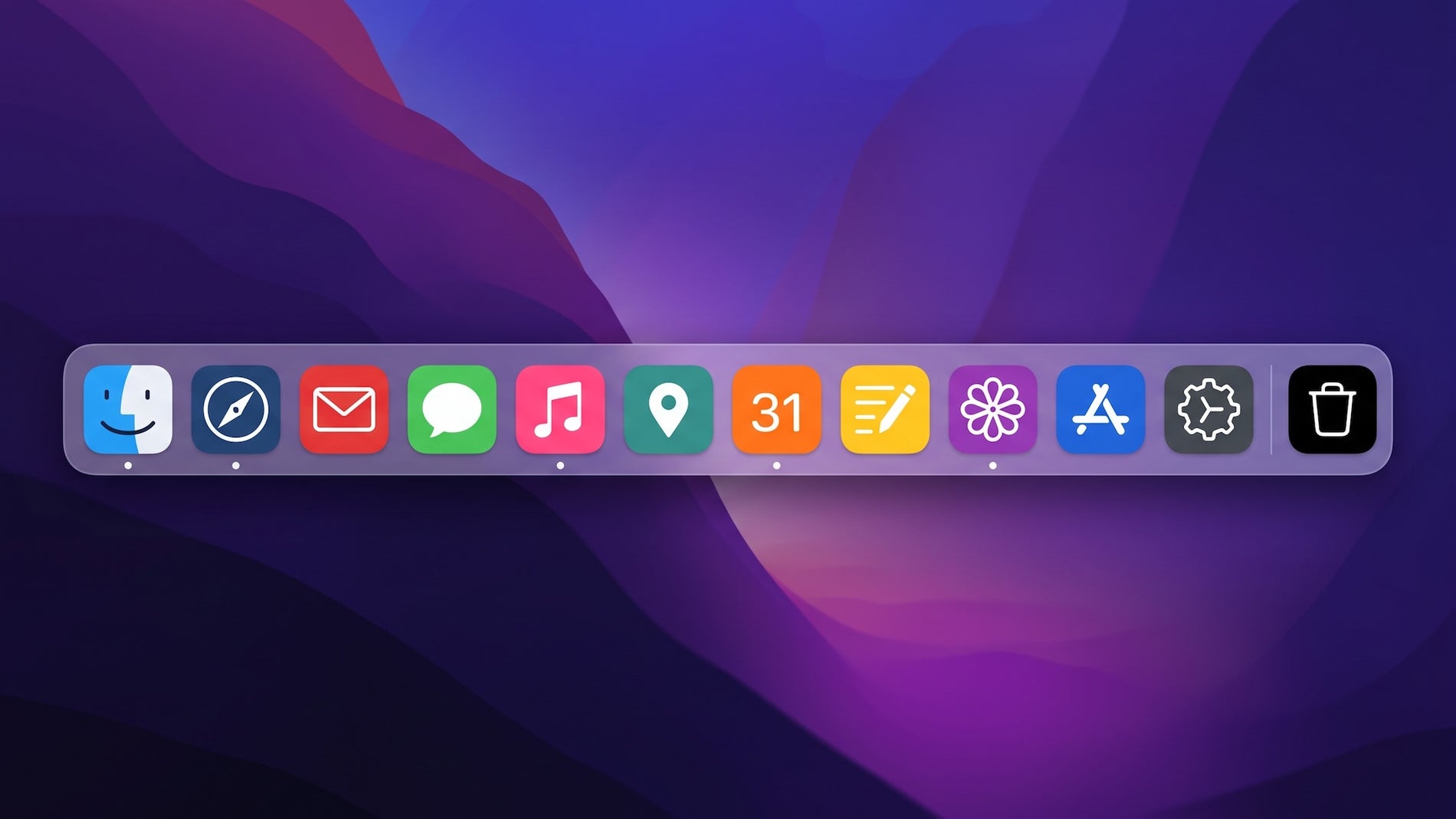
Users often seek to change application graphics when older software features outdated visual designs that clash with modern desktop themes. Otero noted that personal aesthetic preferences and inconsistent icons on Progressive Web Apps also prompt users to retheme their desktop dock.
The Dock serves as the primary application launcher and switcher in macOS, displaying icons for active and pinned software along the edge of the screen. Apple created macOS, originally introduced as Mac OS X, as the Unix-based operating system powering its desktop and laptop computer lines.
Step-by-step customization process
The customization process requires an image file in either PNG or ICNS format, which users open using Preview, the default macOS image viewing application. Otero demonstrated the procedure by changing the default icon of the Mozilla Firefox web browser to a downloaded alternative graphic.
Inside Preview, selecting the complete graphic requires pressing Command plus A and then Command plus C to copy the image to the system clipboard. Otero advised that when using ICNS files, which contain multiple resolution sizes in a sidebar, users must click a specific size in the sidebar before copying to ensure the visual data is captured rather than the file object itself.
After copying the image, users open Finder, the built-in file manager on macOS, navigate to the Applications folder, and locate the target program. Right-clicking the application and selecting Get Info, or selecting the file and pressing Command plus I, opens the application properties dialog.
To apply the new look, users click the small existing icon displayed in the upper left corner of the Get Info window to highlight it, then press Command plus V to paste the copied graphic. Otero stated that users can also drag an image file directly onto the small icon preview or use the right-click menu to select Paste.
Restoring defaults and troubleshooting
Reverting an application to its original factory appearance is equally straightforward, according to Otero. Users reopen the Get Info window for the modified application, click the small custom icon in the upper left corner, and press the Delete key.
If the desktop dock fails to reflect the updated graphic immediately, Otero recommended right-clicking the application icon to restart the program, or logging out of the macOS user account and logging back in.
Technical format guidelines and limits
Image selection plays a critical role in achieving high-quality results on macOS desktop displays. Otero highlighted that PNG files with transparent backgrounds maintain their transparency, allowing customized icons to blend cleanly onto the dock toolbar.
In contrast, JPG files lack transparency capabilities and render with solid white or square background borders. Otero emphasized that macOS does not automatically round graphic corners or generate drop shadows for custom icons, requiring selected design files to incorporate those visual elements beforehand.
For resolution, Otero recommended starting with images sized at 1024 by 1024 pixels. Lower-resolution images get expanded by the operating system, which causes pixelation and blurry rendering on high-density Retina displays.
Apple uses Retina display technology across its computer lineup, packing enough pixels per inch to render text and graphics with sharp clarity at normal viewing distances. The ICNS file format contains multiple scaling assets within a single file, enabling macOS to pick appropriate icon sizes for small, medium, or large screen views without losing clarity. While PNG files function effectively, Otero identified ICNS as the most reliable format.
System restrictions and icon resources
The modification procedure applies to standard software applications as well as Progressive Web Apps installed through Google Chrome or Apple Safari. However, Otero noted that certain core operating system applications, including Safari, are protected by built-in macOS security protocols and do not allow icon changes.
Otero also cautioned that routine software updates may overwrite custom graphics, restoring an application's original icon and requiring users to repeat the copy and paste steps.
Mac users do not need graphic design experience to retheme their desktop applications, as independent online communities publish pre-made icons for public download. Otero highlighted macOSicons, a specialized online repository hosting 33,607 custom macOS icons at the time of publication.
The macOSicons platform allows users to search by application name, download preferred designs, and install them using the native macOS menu shortcuts.