

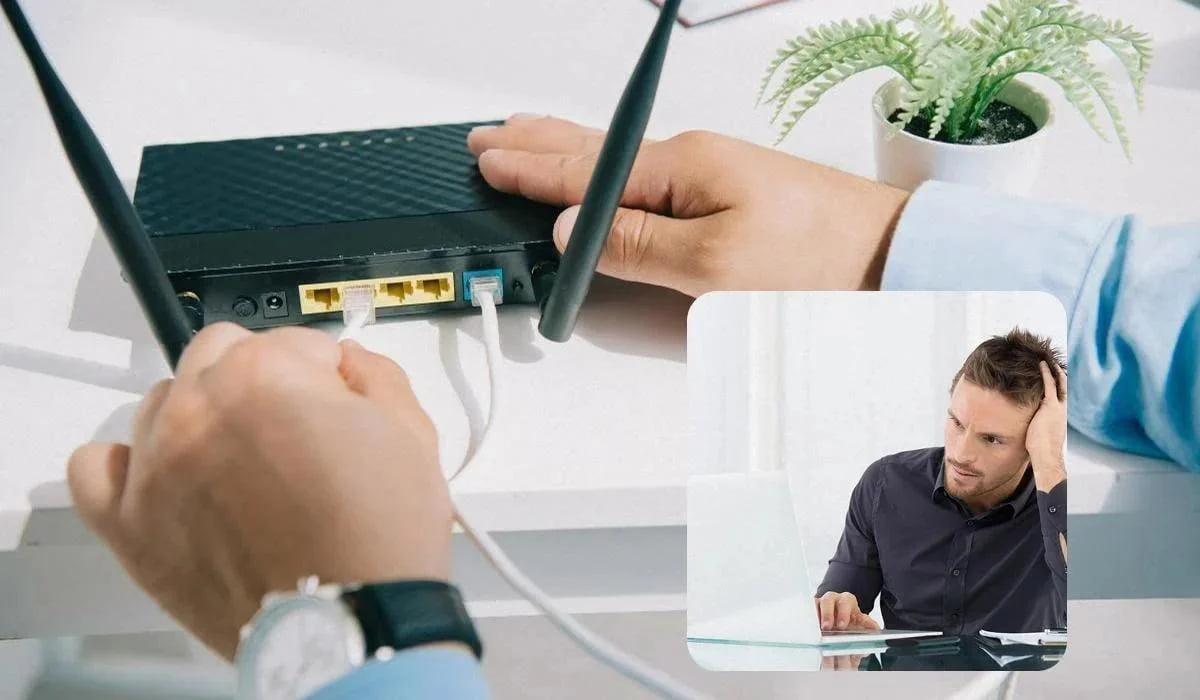
Most modern Wi-Fi routers broadcast two separate wireless networks at once, one on the 2.4 GHz band and one on the 5 GHz band, but a built-in feature called Band Steering, also known as Smart Wi-Fi, merges them under a single network name and automatically decides which band a smartphone or laptop connects to. According to technology experts at ADSLZone, that automatic decision often ends up putting devices on the slower of the two networks.
Manually separating the two bands can noticeably speed up a home internet connection and help users forget about constant dropped connections, the ADSLZone experts wrote.
2.4GHz versus 5GHz: what changes
Both bands give full access to the internet, but they behave very differently. The 2.4 GHz network has wide coverage and passes through concrete walls well, making it useful when a user moves to another room or the kitchen. The trade-off for that range is lower speed.
The 2.4 GHz band is also used by nearly all smart devices and household appliances, which leaves the channel heavily congested with interference.
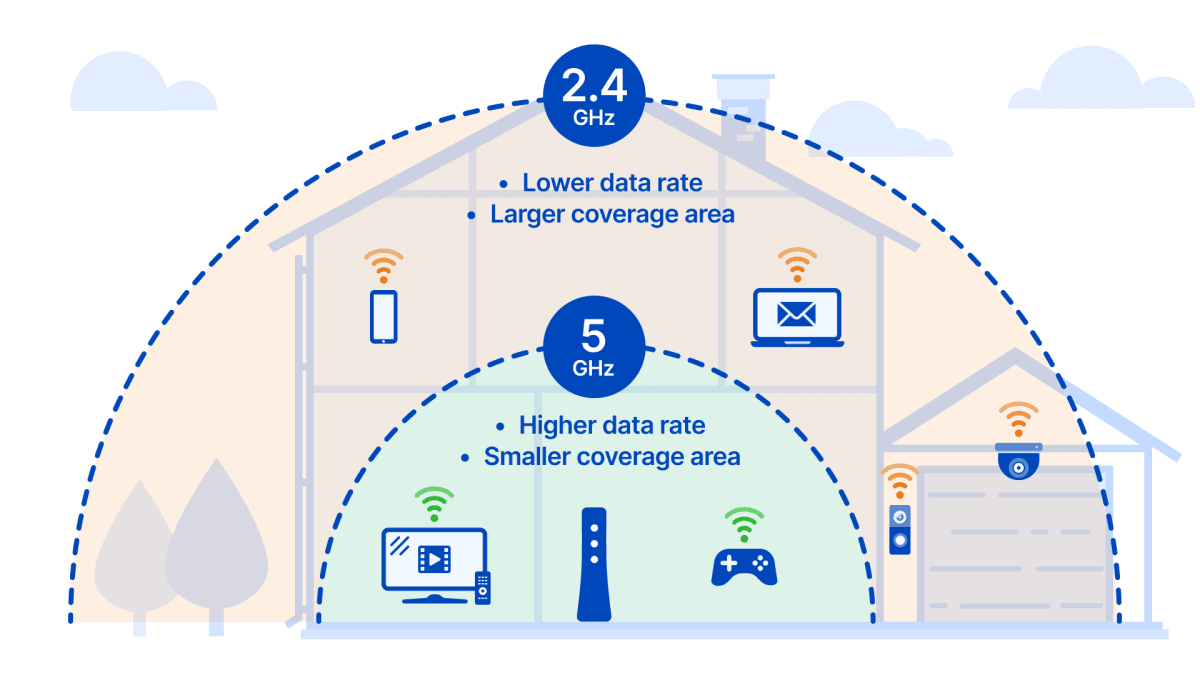
The 5 GHz band, by contrast, is built for maximum speed and stability. It is less prone to interference, making it well suited to watching films in 4K, online gaming and downloading large files quickly. Its range is shorter, though, and the signal loses strength faster when passing through thick walls.
How to turn off Band Steering
When Band Steering is switched on in a router's Wi-Fi settings, the device automatically shifts gadgets from one frequency to the other. In practice, the algorithms often get it wrong and leave smartphones on the slower 2.4 GHz frequency even when the user is sitting just a few metres from the router.
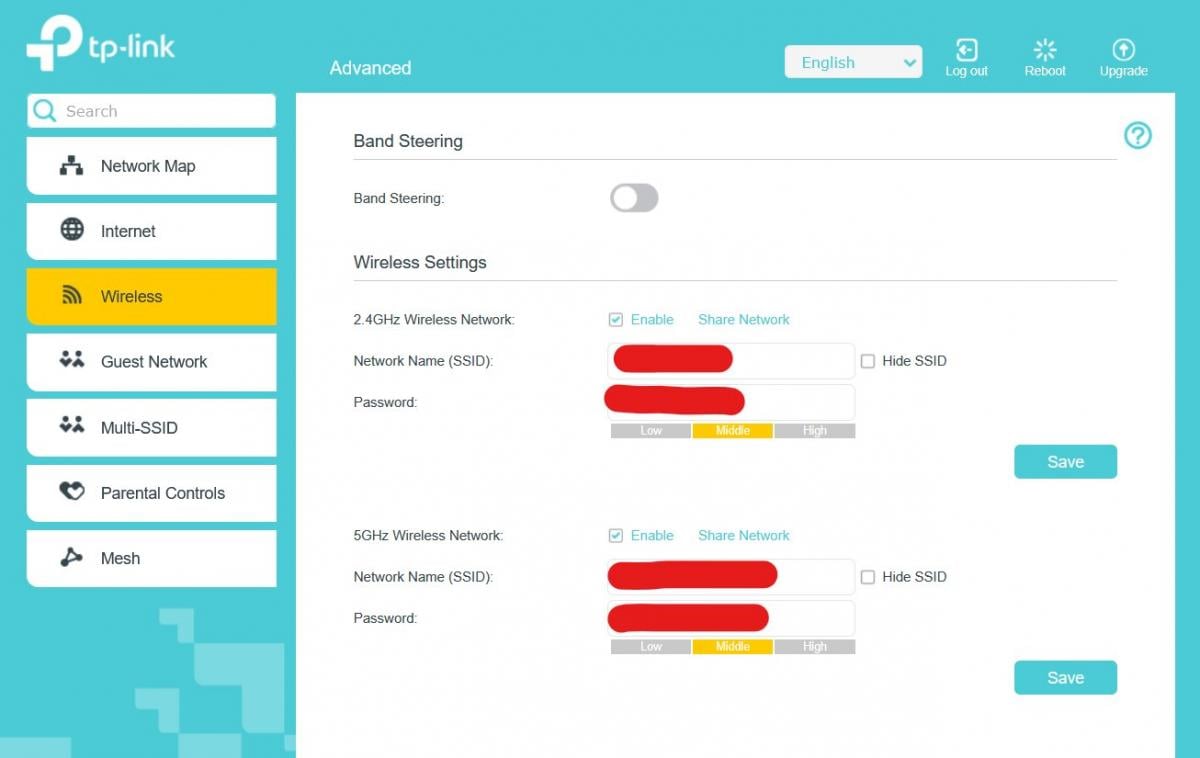
To take control and choose a network manually, Smart Wi-Fi can be switched off in the equipment's settings. Users should bear in mind that older gadgets may not support the 5 GHz band. The steps are as follows:
- Open a browser and go to the router's control panel by typing 192.168.1.1 into the address bar, or whichever IP address is printed on the device's casing.
- Log in using the username and password found on the sticker on the bottom of the device.
- Go to the Wi-Fi, or wireless, settings section.
- Find the option called Band Steering, Smart Connect or Smart Wi-Fi, and switch it off.
- Save the changes. After the router restarts, two separate connections will appear in the list of available networks.
A third band on some routers
Beyond dual-band models, tri-band routers that also support a 6 GHz frequency exist. Routers supplied by internet providers rarely come with this module, but on modern, more advanced models, switching off Band Steering opens up three separate networks at once.
The 6 GHz network offers record speed and minimal latency, but it requires a direct line of sight to the router. It can also only be seen and used by devices that support the Wi-Fi 6E and Wi-Fi 7 standards.
Other ways to improve home Wi-Fi
Even choosing the right frequency will not fix a weak signal if the router itself is in a poor spot. For the signal to spread evenly through a home, the router should sit closer to the centre of the property and should not be hidden inside closed cabinets or behind a television.
For a large apartment or a house with a complicated layout, it is worth considering a Wi-Fi repeater or a mesh system to extend coverage. Otherwise, a simple rule helps: keep televisions, computers and smartphones close to the router.
Test yourself
What does Band Steering (Smart Wi-Fi) do on a router?
According to the article, which Wi-Fi band has wider coverage but slower speeds?
What should users keep in mind before switching off Band Steering?
Have your say
Have you ever manually separated your router's Wi-Fi bands?